Get started
In case you just started with Raspberry Pis, read the articles below first. Please note that I usually use Raspberry Pi 4 for my projects.
 Data-Samurai.ch
In case you just started with Raspberry Pis, read the articles below first. Please note that I usually use Raspberry Pi 4 for my projects.
The first step after setting up the Raspberry Pi 4 is to enable RDP connections as it makes life a lot easier working from your desktop as directly on the Raspi.
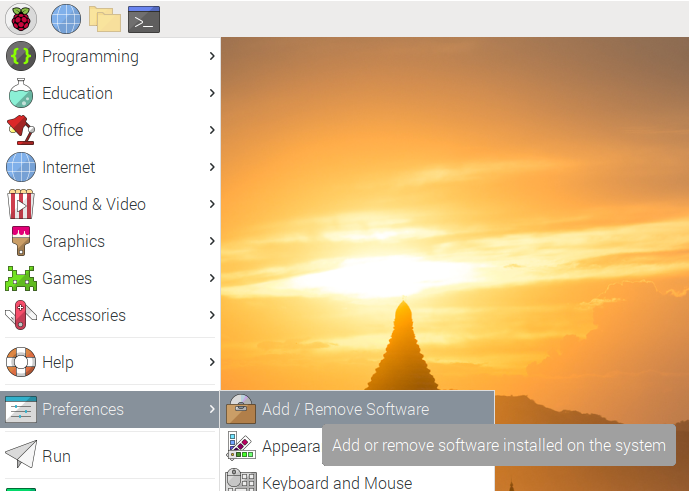
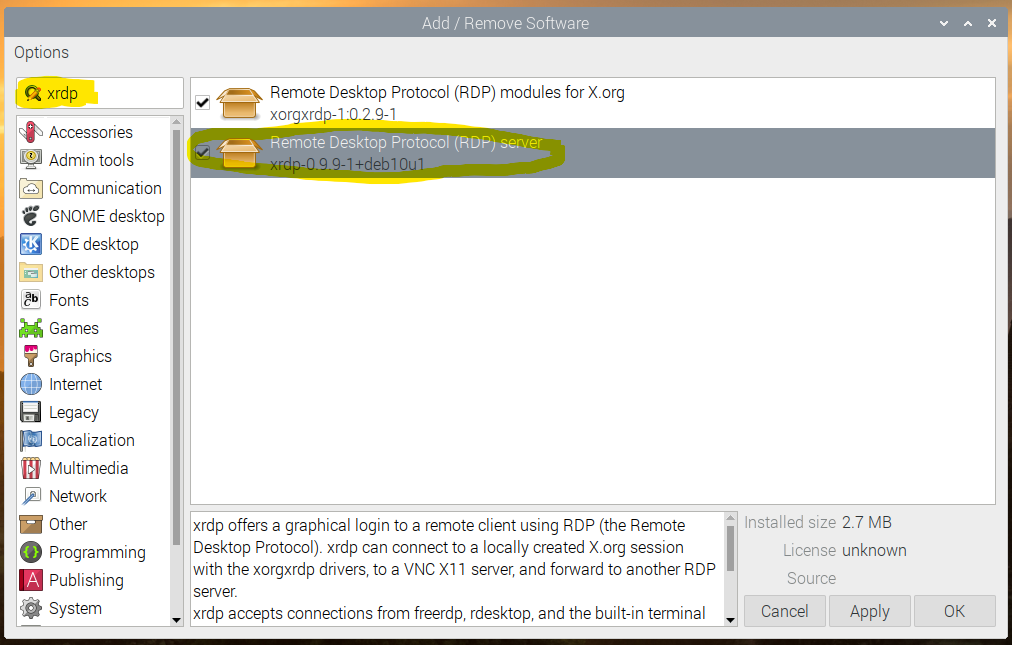
2. Search for xrdp and install the RDP Server and install both packages
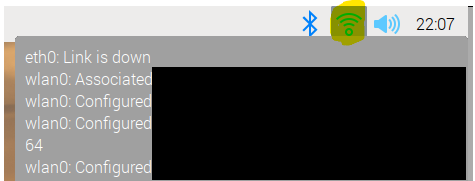
The last step before you switch to your desktop is to note the IP address of your pi. There are two ways to do that
The easy one, keep your pointer on the network symbol in the top right corner until you can see the gray box with the connection details
Alternatively, you can run the command
ifconfig

In Windows search for rdp and start the remote desktop connection.
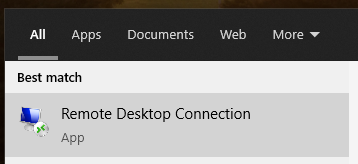
2. Enter the IP Address
3. Insert your pi login information
For people who want to connect to their Raspberry Pi from another network, there is the option of port forwarding. This is a setting that you have to do on your router at home and enables you to connect from anywhere via RDP. Follow the link below to see the instructions but please be aware that opening a port creates a new vulnerability for your network. As you forward the requests sent to a specific port of your router to your raspberry pi, it won’t be as protected anymore. In some cases, it may be smarter to use another tool or stick to the local network.
I assume many of you use a professional tool for screen capturing at work and although I have to admit they are very helpful I don’t want to spend 30 USD or more for such a tool. Luckily Windows 10 has some onboard tools and with a little setting, you may get all you need for at home.
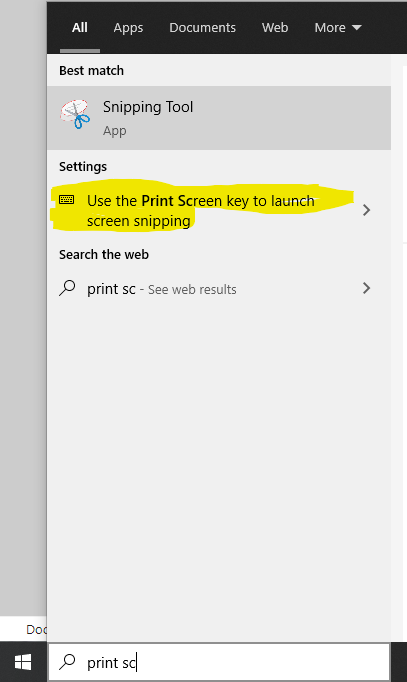
2. Turn on the Print Screen shortcut
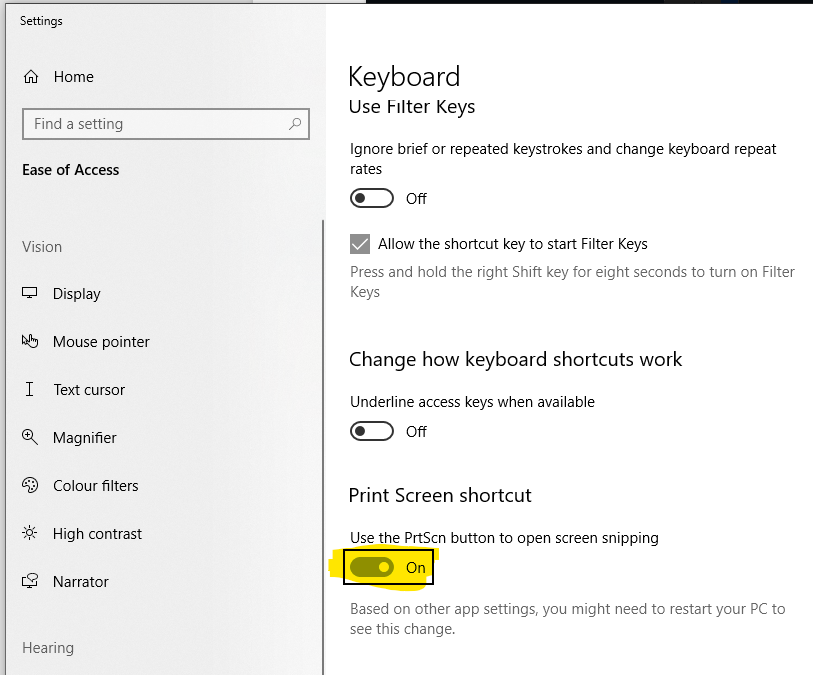
By activating this feature your Print Screen key will launch the Screen Snipping Tool of Win10.
Die Schuldenberge der westlichen Staaten scheinen enorm zu sein. Das Wort „Milliarde“ gehört mittlerweile zum Standardvokabular der Medien, sobald es um Sparpakete oder Konjunkturhilfen geht. Dieser Artikel versucht, wieder ein Gefühl für so grosse Zahlen herzustellen.
Für viele Länder ist es wichtig, die Staatsverschuldung der USA zu beobachten. Die immer noch grösste Volkswirtschaft der Welt hat einen sehr starken Einfluss auf den internationalen Handel. Ihre derzeitigen Staatschulden betragen mittlerweile 16 Billionen US Dollar.
Quellen
Spiegel. (05.09.2012). US-Staatsschulden steigen auf 16 Billionen Dollar, Staatsverschuldung, Staat & Soziales, Wirtschaft, Nachrichten, Spiegel Online. Internetseite (konsultiert am 13.09.2012): http://www.spiegel.de/wirtschaft/soziales/staatsverschuldung-in-den-usa-steigt-auf-mehr-als-16-billionen-dollar-a-853953.html
Wikipedia. (25.08.2012). Internationaler Vergleich, Bruttonationaleinkommen.
Internetseite (konsultiert am 20.09.2012): http://de.wikipedia.org/wiki/Bruttonationaleinkommen
Würde man alle Schulden in Form von Pennys aufeinander stapeln, hätte dieser Stapel eine Höhe von 2.48 Milliarden Kilometer. Das entspricht der 11-fachen Distanz der Erde zum Mars.
Herleitung

Quellen
Wikipedia. (19.09.2012). Thickness, Cemt (Penny), Penny (United States coin).
Internetseite (konsultiert am 19.09.2012):
http://en.wikipedia.org/wiki/Penny_%28United_States_coin%29
Space.com. (29.02.2012). What Is the Distance Between Earth and Mars?.
Internetseite (konsultiert am 19.09.2012):
http://www.space.com/14729-spacekids-distance-earth-mars.html
Dieser Turm aus Pennys wächst ständig und zwar exponentiell! Diese Wachstumsgeschwindigkeit hat dadurch ideale Voraussetzungen um ein paar Rekorde zu brechen.
Für die Wachstumsgeschwindigkeit nehmen wir die Zinsen einer US Staatsanleihe für 30 Jahre. Am 13. September 2012 betrug dieser Zins 2.94% pro Jahr.
(Diesen Wert exponentiell und nicht linear zu berechnen, ist nur dann richtig, wenn die Zinsen wieder durch neue Staatsanleihen finanziert werden. Diese Finanzierungsart war aber in den letzten Jahrzenten der Regelfall.)

Mit diesem Zins würde der Stapel aus Pennys im ersten Jahr um 72.9 Millionen Kilometer wachsen. Das ist mehr als die 189-fache Distanz der Erde zum Mond. Oder anders gesagt, dass wäre eine Wachstumsgeschwindigkeit von 2312 Meter pro Sekunde bzw. die 6.7-fache Schallgeschwindigkeit. Diese Wachstumsgeschwindigkeit erhöht sich aber ständig und nach 407 Jahren wäre sie schneller als das Licht. Wenn sich aber ein Gegenstand mit dieser Geschwindigkeit bewegen würde, wären nach gewissen physikalischen Theorien Zeitreisen möglich. Vielleicht ist das die geplante Lösung des Schuldenproblems 🙂
Herleitung

Quellen
finanzen.net. (13.09.2012). 30j-US-Staatsanleihen, Zinsen, Börse.
Internetseite (konsultiert am 13.09.2012):
http://www.finanzen.net/zinsen/
Wikipedia. (30.05.2012). Lunar Distance.
Internetseite (konsultiert am 20.09.2012):
http://de.wikipedia.org/wiki/Lunar_Distance
Wikipedia. (16.08.2012). Zeitreisen, Überlichtgeschwindigkeit.
Internetseite (konsultiert am 20.09.2012):
http://de.wikipedia.org/wiki/%C3%9Cberlichtgeschwindigkeit#Zeitreisen
I still think the math part of the page was quite entertaining.
Viele Leute unterschätzen die Kraft des Zinseszins, die Josef Geschichte dient dazu dies auf eine simple Weise zu vermitteln.
In diesem Artikel geht es darum diese zu analysieren und Rückschlüsse daraus zu ziehen.
Die Geschichte
Dirk Müller erzählt die Geschichte am besten.
(ca. ab 1:10)
www.youtube.com/watch
Formeln
Zur berechnung brauchen wir 2 Formeln
Zinseszins: K0 * (1 + i) ^ n = Kn
Zins: K0 + n * (K0 * i) = Kn
K0: Startkapital
i : Zinssatz
n : Jahre
kn: Kapital nach n Jahren
Berechnung
K0 = 0.01
i = 0.05
n = 2000
Zinseszins:
Kn = 0.01 * (1 + 0.05) ^ 2000 = 2.4 * 10 ^ 40 $
Zins:
Kn = 0.01 + 2000 * (0.01 * 0.05) = 1.01 $
Umrechnung in visuelle Grösse
Goldpreis = 51’556 $/Kg (5 Aug 2012)
Gewicht Erde = 5,974 · 10 ^ 24 kg
Erden aus purem Gold = (Kn / (Goldpreis* Gewicht Erde)) = 77’634’311’516
Erkenntnis
-Die Dimension stimmt etwa, die Mr. DAX anspricht.
-In 2000 Verzinsungsschritten ist so eine grosse Differenz erreicht…
Weitere Analysen
(folgen 5 Aug 2012)
Quelle
(5 Aug. 2012)
Goldpreis
zkb.is-teledata.ch/html/finanzprodukte/edelmetallkurse/kunden/index.html
Gewicht Erde
de.wikipedia.org/wiki/Erde
A friend and I used to run a page about trading based on analyses with the programming language R back in 2012. Before I take that page offline, I want to repost a few articles here.
Analysen mit R
Die Rechenleistung der heutigen Computer ermöglicht Privatpersonen zu Hause aufwändige Rechenverfahren durchzuführen. Die meisten Nutzer unterschätzen die Leistung ihres Heimcomputer und beschränken sich meistens auf das surfen im Internet oder das Verfassen von Texten. Wenn dann das Hochfahren der Maschine ein wenig dauert, wird der Rechner schnell als langsam denunziert. Erst durch das eigenhändige Programmieren versteht man, wie enorm gross der Nutzen von Computern für die Naturwissenschaften war und ist.
Um einen Computer zu programmieren, muss man mit ihm über eine Programmiersprache kommunizieren. Dabei ist die Programmiersprache R spezialisiert auf quantitative Analysen.
Die Vorteile von R:
Wie man sie einsetzt, wird hier ganz nach dem Motto „Learning by Doing“ vorgestellt.
Um mit R zu arbeiten empfehlen wir die Freeware R-Studio. Da sie unserer Meinung nach die ideale Kombination zwischen Übersichtlichkeit und Programmierfreiheit bietet. Sie ist frei im Internet erhältlich
Um Finanzdaten in R zu laden
library("tseries") # Die benoetigten Funktionen befinden sich in der library tseries

# Beispiel mit Novartis
prices <- get.hist.quote("NVS", quote=c("Open", "High", "Low", "Close","Adj"), start="2011-08-01", retclass="zoo")
stock <- as.matrix(prices)
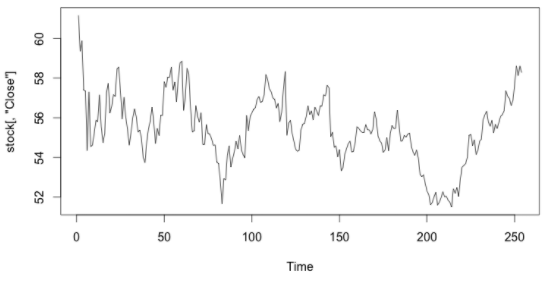
ts.plot(stock[,"Close"])
Bellow some Basic Raspberry Pi Terminal Commands snippets.
In program for Unix-like computer operating systems sudo stands for Super User Do. Depending on the situation you may need it (due to laziness I just use it all the time).
sudo apt-get update
sudo apt-get upgrade
If you want automatic updates and upgrades.
sudo apt-get install unattended-upgrades
sudo dpkg-reconfigure -plow unattended-upgrades
If you want to know more go here https://www.elektronik-kompendium.de/sites/raspberry-pi/2002101.htm
# Install an app
sudo apt install [package name]
sudo apt install hostapd

# Remove the package from use
sudo apt-get remove [package name]

# To completely remove the package from the system.
sudo apt-get purge [package name]

# To clean up the local repository
sudo apt-get clean [package name]Nano is an easy to use command line text editor. It is especially helpful if you do adjustments in config files which you only can change as superuser.
sudo nano /etc/dhcpcd.confifconfigIf you need the IP only
hostname -IWhen setting up a new Raspberry Pi, you need to install an operating system. As I do that very rarely I personally stick to NOOBS (New Out Of Box Software) at the beginning as it is an easy operating system install manager for the Raspberry Pi.
SD cards with NOOBS preinstalled are available in many online shops and are sometimes well pized. If you are not lucky enough to find a good prize or you have an old SD card you don’t need (min 16 GB) follow the steps bellow.
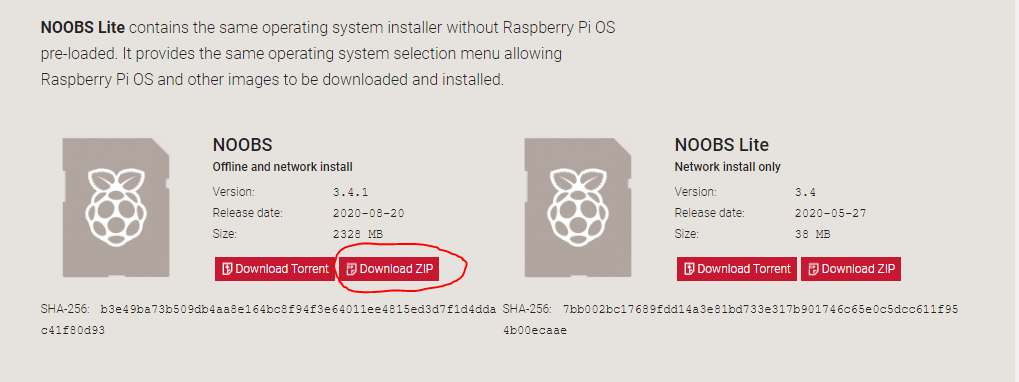
2. Click on NOOBS
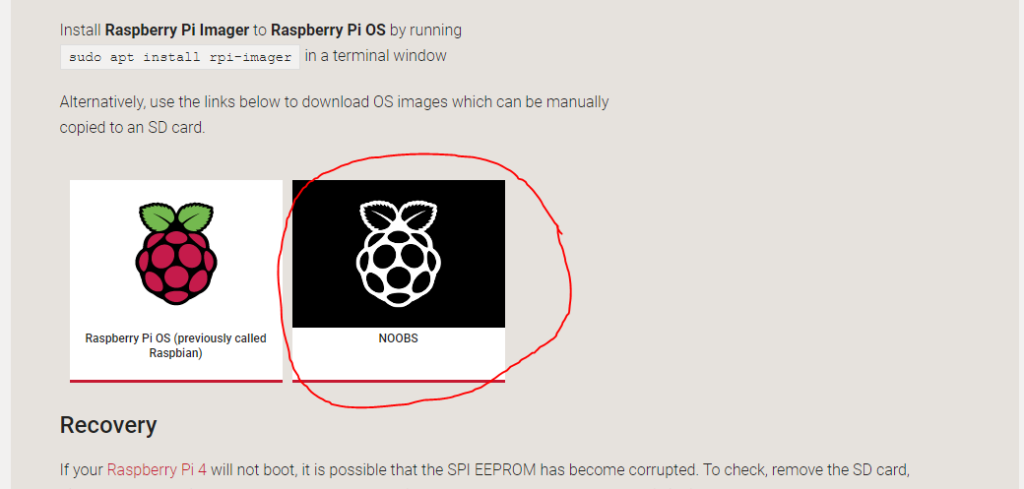
3. Then select Offline and network install and Download it as a ZIP
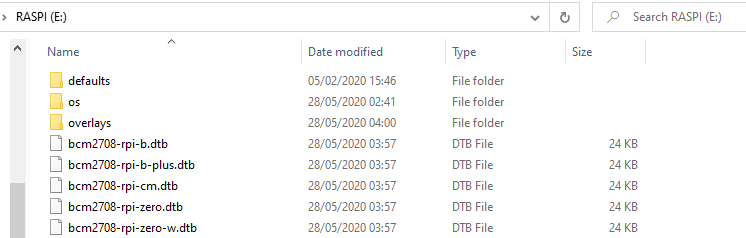
2. Once your SD card has been formatted, extract the files from the zip you downloaded to your SD card (defaults, os, etc.). The necessary files will then be transferred to your SD card and will look like bellow.
4. When the extraction has finished, safely remove the SD card and insert it into your Raspberry Pi.
1.Plugin your keyboard, mouse, and monitor cables first.
2. Then plug the USB power cable into your Raspberry Pi. This will trigger the boot process.
3. During the boot, a window will appear with a list of different operating systems that you can install.
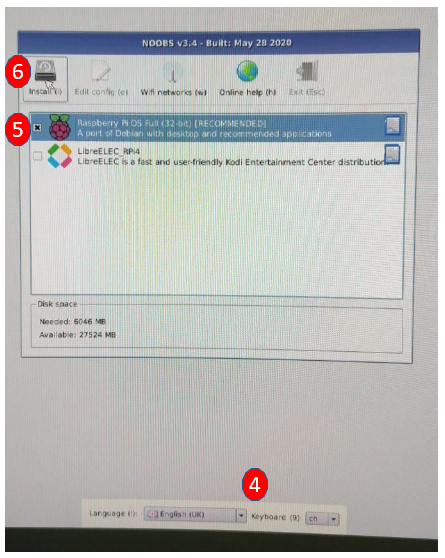
4. Please choose your language and your keyboard layout. I use CH as I have a Swiss QERTZ keyboard.
5. Choose Raspbian by making a tick next to the box Raspbian
6. Click on Install and confirm that all existing data on the drive will be overwritten.
7. Raspbian will then run through its installation process.
8. When the installation process has completed, a welcome window will pop up and guides you through the settings e.g. time zone, password, wifi settings, etc. and ends with an optional update.